Let’s be honest—backups are one of those things that are easy to put off...
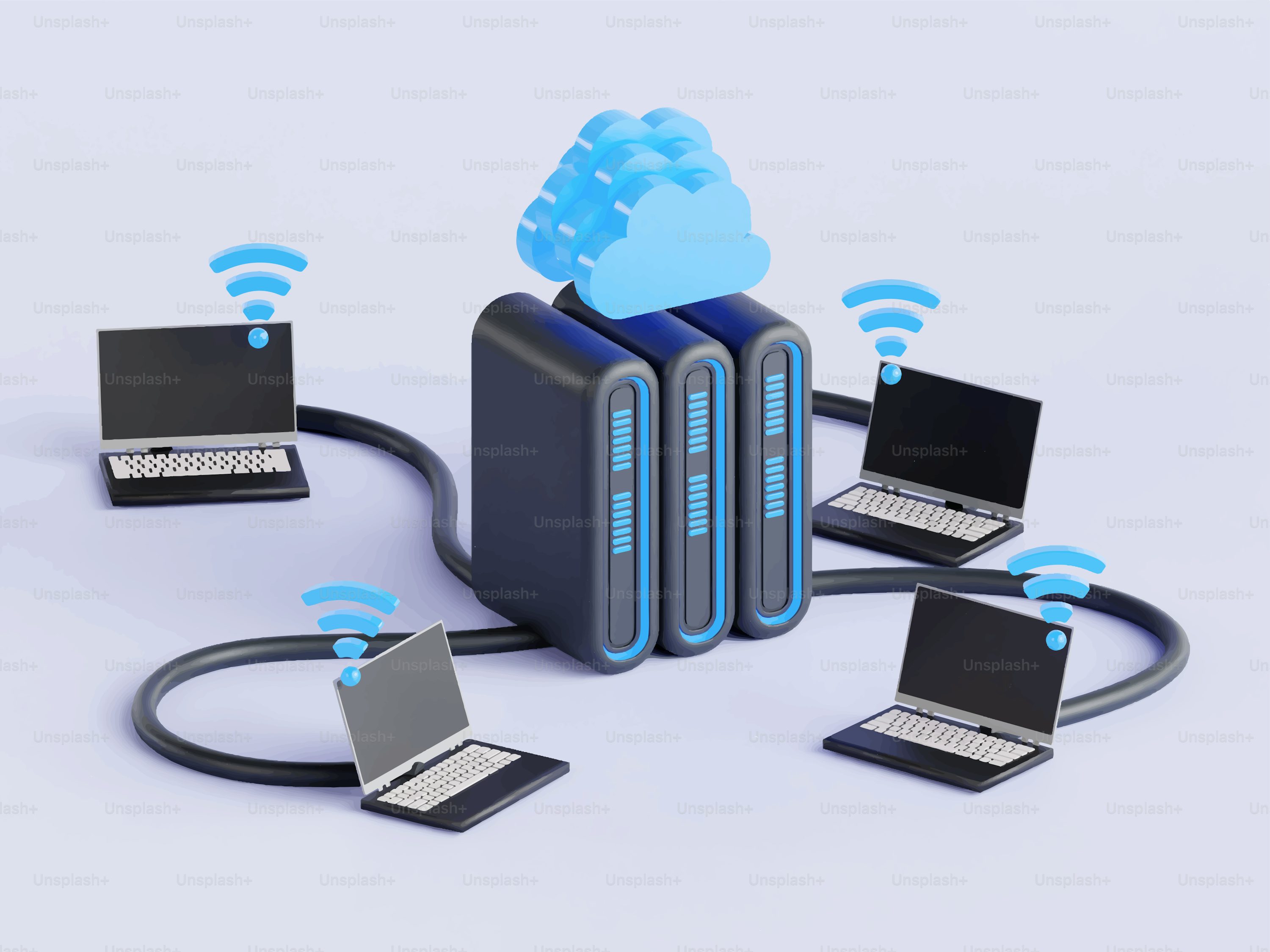
Backups Made Simple: Keeping Your Files Safe, Without Overthinking It
Computers are finicky tools. We use them every day, rely on them for almost everything, and yet the failure rate is surprisingly high for how much we depend on them.
Hard drives fail, systems crash, updates go sideways, and sometimes things just stop working for no clear reason!
So what should we do to make sure our documents, photos, and important files stay safe?
You probably already know the answer — backups.
But that leads to a few important questions.
How do I know my computer is actually backing up somewhere safe?
How do I know I can get my information back after a crash?
And what does a good backup really look like?
Let’s walk through it together.
The 2-to-1 Rule
A helpful way to think about backups is this:
Files should exist in at least two different locations, and this does not include on your computer.
What that might look like:
- an onsite NAS (Network Attached Storage)
- an offsite cloud like backup
- or even a full system image for faster recovery
The idea is simple — if one copy fails, you have another to fall back on. It’s not about having a complicated setup, just a reliable one.
NAS and Cloud Explained
An onsite NAS (Network Attached Storage) is a central storage device, it looks like a block of hard-drives and has built-in software for configuratin.
Your computers can automatically send copies of files to it, keeping everything backed up locally.
The benefit of an onsite NAS is speed.
If something goes wrong, your files are right there and can be restored quickly.
An offsite NAS (Network Attached Storage) works similarly to cloud backup, but with one key difference — you (or your tech team) have full control over the device.
Instead of relying entirely on a third-party provider, the NAS is managed directly, which means monitoring hard drive health, making sure backups are running properly, and addressing issues if something stops working.
This option works especially well for smaller businesses that want the security of offsite storage while still knowing their files are being managed closely and are always within reach if needed.
i.e.: The same benefits with as an onsite NAS being remotely monitored by a company you're directly in communication with.
A Cloud backup stores your data offsite in secure data centers. Your data is encrypted, sent safely over the internet, and stored there, creating a second copy of your information in a completely different location.
This protects you from bigger issues like:
- fire
- theft
- hardware failure
- power issues
- or other unexpected events
The real strength comes from using two or all three of these options together.
The NAS handles quick, local recovery, while the offsite backup/cloud adds protection if something happens at your physical location.
BUT, Can I Trust That My Cloud Isn’t Being Hacked?
This is a completely fair question!
Cloud backups today are designed with strong security in mind.
Most use encryption both during transfer AND while your data is stored, meaning your files are protected and not easily readable without the proper access.
That said,no system is ever 100% risk-free— and that’s exactly why relying on a single backup isn’t ideal.
Having multiple backups means you’re not putting all your trust in one place:
- If the cloud has an issue, your NAS still has your data
- If your NAS fails, your cloud backup is still intact
Backups aren’t about finding one perfect solution.
They’re about making sure no single problem can take everything down at once.
Notifications and Monitoring: Knowing That it’s Actually Working
One of the most common assumptions is that once backups are set up, they’ll just keep working forever.
Most of the time they do — but when they don’t, you want to know.
Good backup systems include notificationsthat alert you if something stops working.
This could include but are not limited to, a failed backup, a disconnected drive, or a sync that didn’t complete.
It's like a check engine light but for your files.
You don’t need constant updates, but if something needs attention, it’s important to catch it early.
Without notifications, backups can quietly fail in the background. And unfortunately, many people only find out when they actually need them.
A healthy backup setup usually includes:
- automatic backup schedules
- alerts for failures or issues
- occasional check-ins to confirm everything is running properly
It doesn’t take much time, but it makes a big difference.
A good backup system doesn’t prevent those moments — it just makes sure it's not a disaster when they happen.
By keeping multiple copies of your data, using both local and cloud backups, and making sure you’re alerted if something goes wrong, you create a safety net that lets you recover quickly and keep moving forward.
It’s not about building something complicated.
It’s about building something dependable.
And when you do need it, you’ll be glad it’s there.
*Let us know if you have any questions~